
ATS Report - Excel formatUpdated 8 months ago
Log into your account
Go to Manage > Offline Order Form

Select your catalog by checking the box to the left of it.

Choose your filters by clicking on the filter icon.

If you want current availability, you can leave the default date. If you want future availability, click on the calendar icon, and choose a future date. If you want both current and future availability, add an additional date by click the white calendar icon with the + and then set a future date by clicking that calendar logo.

Click Next.

Select your customer by using the search bar. If you don’t want to pull it for a specific account, you can use your rep account. You can type the name, or account number, or enter the % sign to view your full list. You must either press Enter on your keyboard or click on the search icon.

Select the account by checking the box to the right.

Check the box to the right of With Images and then click Generate Forms.

The status of your form will be Submitted at first. Wait a few minutes and click the refresh button at the top righthand corner. If it’s not ready the status will update to Processing. Wait a couple more minutes and click the refresh button again. When it’s ready the status will say Complete. You can now click the download icon (under Generated Files).

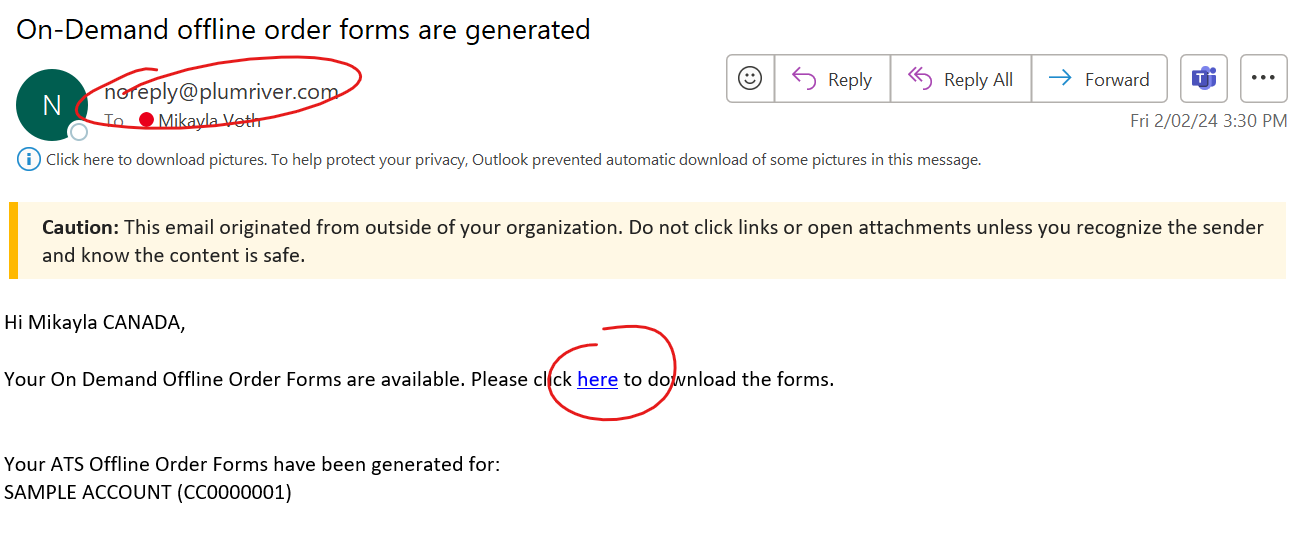
You will also get an email with the link to download from [email protected]

A zip file will download to your device. Open your Downloads folder. Open the zip folder and then open the excel document in the folder.

If you get a Protected View message, click Enable Editing.

You will likely get a Security Risk message. To ensure this message doesn’t pop-up for your buyer and to enable macros, save a new copy of the file outside of the zip folder.
File > Save As > Rename the file > Click Browse to change the folder > Save
Tips!
If you are sending the file to multiple recipients, delete the account number on the Summary tab.
Click on the Delivery tab before you save the file. This will ensure when the recipient sees that tab first when they open the file.