Navigate Order History - RepUpdated 8 months ago
Log into your account.
Select your preferred customer from the pop-up dropdown or choose “continue as myself” – you can adjust your customer preferences in the Order History widget.

Hover your curser over Manage and choose Order History from the menu.

The default layout will display All Orders for the customer you selected at login within the last 2 weeks. You can clear this by clicking the x next to “1 Customer Selected” and increase the time range – example: Past 6 Months. Now you can see All Customers.

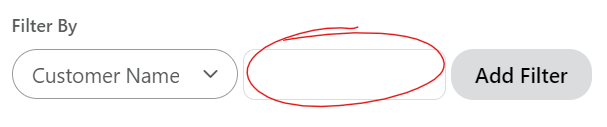
Filter by Customer Name, Elastic Order #, ERP #, or PO #. Type in the name or number and press enter.

Sort any column alphabetically or numerically by clicking on the column header and moving the arrow in either ascending or descending order.

Add or remove columns by clicking on Edit Columns.

Remove column headers from the Current list by selecting the header name and clicking the right arrow. Add column headers from the Available list by selecting the header name and clicking on the left arrow. Rearrange the order or column headers by using the up and down arrows. Click Okay.

Select rows to export to excel by clicking the checkboxes on the far lefthand side. To select all rows, select the checkbox next to the Customer # header.

Export to excel by clicking on Export XLSX. The report will download to your desktop automatically. Click Enable Editing when it opens.

To view more information on a specific order, click Details.

To view multiple orders/shipments in the Details view, click the x next to the ERP Order #. You can then search by Customer Name.
 >
> 
To go back to the All Orders view, click on All Orders in the top righthand corner.