
Place an ATS OrderUpdated 8 months ago
Click on Shop Now in the top lefthand corner.

Click an the ATS Catalog.

Switch to Quick Order Entry by clicking on the Menu button in the top righthand corner and select Quick Order Entry (close to the bottom).


Tip: To ensure you are only seeing products available when you want your shipment, scroll to the bottom of the filter options, and pick the same date as you choose for your start-ship date.

Tip 2: If you want to view in-season product only, filter to In-season under Closeout/ In-season. If you only want to view closeout product only, filter to Closeout under Closeout/ In-season.

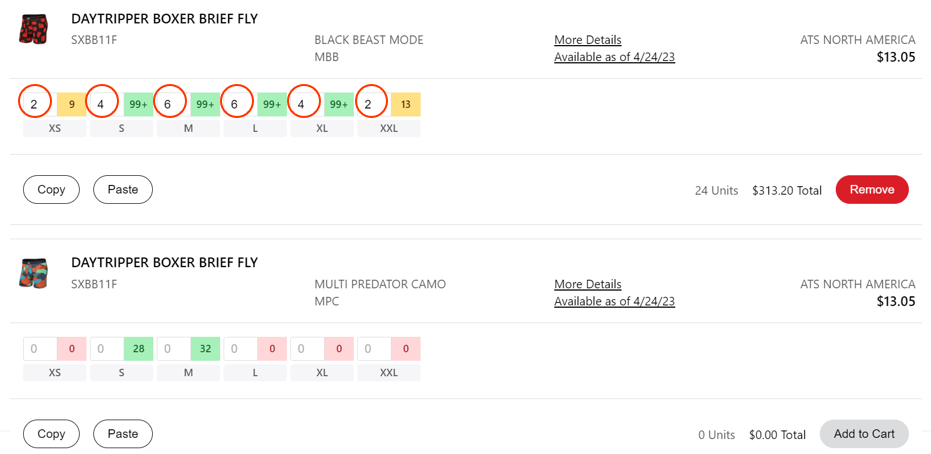
Once you have used the filters to find the product you want, start filling the quantities by size in the boxes.

Tip: To view more details on the product click on More Details. To check for future availability click on Available as of.

Once you are ready to place your order, click on Proceed to Checkout in the bottom righthand corner.

Review your order by Style-Color on the Overview page or by Style on the Summary page.

You can make edits directly from the Overview page by clicking the pencil icon or you can go back to the Quick Order Entry by clicking the Back button in the bottom righthand corner.
Once you are ready, click on Proceed to Checkout in the bottom righthand corner. A pop-up menu will notify you that a final inventory check is being run.

If you get an error message, you have the option to accept the order with the missing units, edit the order to change the units, delete the entire style-color, or change the start-ship date.

One you have made the adjustments, click Accept in the bottom righthand corner.

Select your shipping address from the dropdown menu and enter in a PO# of your choice. If you have any notes, type them in the Comments at the bottom of each shipment.
Click Place Order. You will receive a summary email of your order shortly after. The email also includes a link to download a PDF version of your order, with product images.
 Tip: If the Place Order button isn't working, it could be two issues — either you are using a PO# you've used in the past, so please enter a unique one, or you haven't click out of one to the typing boxes, so click outside of the shipment a column.
Once your order has been submitted, you cannot edit it. If you need to make a change, please email [email protected] and provide your order number and request.